Wednesday, March 6, 2013

TLT Group Inc. FridayLive! March 8 sMOOChers Debrief with Amy Woodgate


FridayLive! March 8 sMOOChers Debrief with Amy Woodgate
08 Mar 2013 2:00 PM EST

Bookmark and Share
FridayLive!
sMOOChers Debrief with Amy Woodgate March 8, 2013  2:00-3:00 pm Eastern Time - free to all. 


Amy Woodgate, University of Edinburgh MOOC project director, joins "sMOOChers" who participated in THE INTENTIONALLY EXPERIMENTAL #EDCMOOC "eLearning and Digital Cultures," https://www.coursera.org/course/edc.  They will discuss their experiences, lessons learned, recommendations, druthers, things to avoid.   This is one of six MOOCs being offered by the University of Edinburgh.  Edinburgh was offering this "course" both as a MOOC and as a more traditional course simultaneously, so Amy can also compare and contrast the two approaches and how they might fit together.  We will also explore ways in which faculty  can integrate MOOCs (entirely or by selecting modules)  hosted by other colleges and universities in their own undergraduate courses. For the last 15 minutes, participants will be invited to discuss emerging plans for the TLT Group to offer a MOOC-ish experience based on John Sener's recent book "Seven Futures of American Education:  Improving Teaching and Learning in a Screen Captured World."


    NOTE:  Login instructions for the session will be sent in the Registration Confirmation Email. Please check your Junk folder as sometimes these emails get trapped there. We will also send an additional login reminder 24 hours prior to the start of the event.


More information and online registration: FridayLive! March 8 sMOOChers Debrief with Amy Woodgate

Hope you can join us!

Sally


Monday, March 4, 2013

eCampus News: Social media in higher education: Pros, cons, and overall impact

Social media in higher education: Pros, cons, and overall impact

social-media-in-higher-education-pros-cons-and-overall-impact


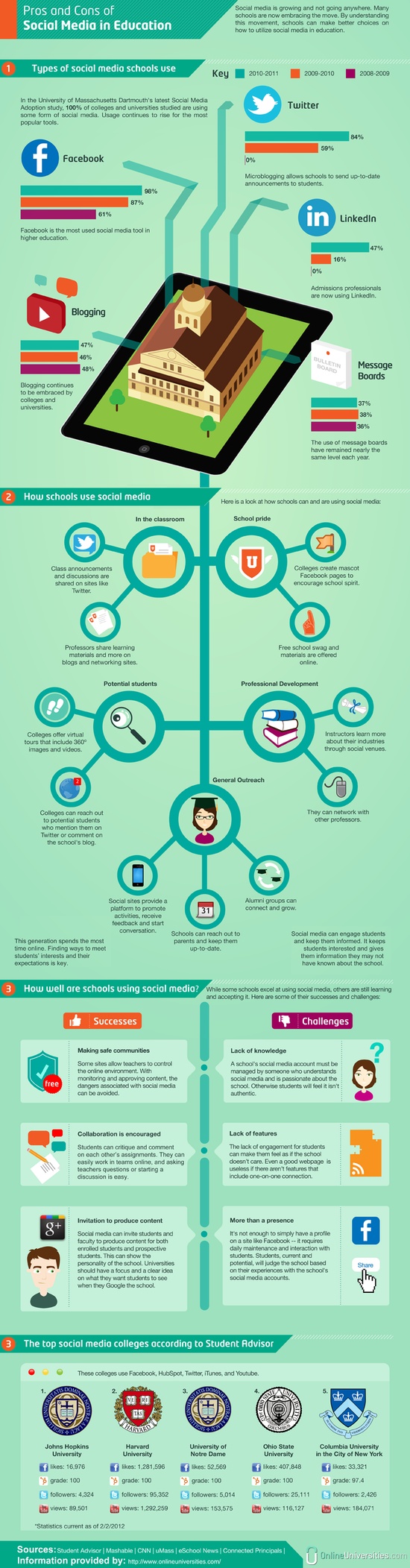
A new infograph illustrates social media’s surge in popularity in the last three academic years.
Once regarded as a passing fad, social media is now an essential language that today’s college students—and officials—must learn in order to remain relevant and well-informed.
The University of Massachusetts-Dartmouth Center for Marketing Research recently surveyed numerous four-year accredited U.S. colleges and universities to assess the use of social media in higher education.
The study’s findings are based on 456 interviews conducted between November to May of the 2010-11 academic year. UMass Dartmouth previously assessed social media findings for the 2008-09 and 2009-10 academic years.
This type of comparative data effectively illustrates a major upswing in the use of social media in higher education, the study’s authors note—something that administrators can benefit from understanding. UMass Dartmouth found that 100 percent of surveyed colleges and universities now are using some form of social media.
The survey infograph illustrates how universities use social media in multiple ways: in the classroom to inform students of announcements, in recruitment efforts, to reflect school pride, to improve professional development, and in general outreach efforts such as connecting alumni or informing students’ parents about university activities.
(Next page: How Twitter, Facebook, LinkedIn, and blogging use have changed over time; plus, view the infograph)

In its original 2008-09 survey, researchers reported that none of the surveyed universities were using Twitter. In the next academic year, 59 percent of colleges began to tweet, and in the 2010-11 academic year, 84 percent of colleges had active Twitter accounts. In a mere three years, Twitter use expanded by a staggering 84 percentage-point margin.
LinkedIn, the “online resume” job networking site, has also seen massive growth in three years. As with Twitter, none of universities claimed to use LinkedIn in the original 2008-09 survey, and only 16 percent used it in the following year’s survey. The most recent survey, however, reflects a 31 percentage-point increase, as 47 percent of surveyed colleges use LinkedIn, particularly admissions professionals.
Facebook, often regarded as the centerpiece of social media, is unsurprisingly the most used social media tool in higher education. In 2008-09, 61 percent of universities reported using it, and a year later, that number was up to 87 percent. In the most recent study, 98 percent of colleges reported using Facebook to connect with the world.
The infograph also listed the three greatest successes and challenges to using social media in higher education.
Most administrators agree that safe communities created within social media—how professors can link students to course materials via monitored virtual environments—is a positive movement. Social media also encourages collaboration among students and professors, and it gives them opportunities to produce good content and further market a university’s unique fingerprint and identity.
In contrast, a lack of knowledge was reported as a major social media deterrent.
“A school’s social media account must be managed by someone who understands social media and is passionate about the school,” the infograph reads. “Otherwise, students will feel it isn’t authentic.”
Lack of connectivity also can make students feel isolated. Additionally, once universities begin using social media, they must maintain and constantly update their accounts in order to remain relevant.
“Students, current and potential, will judge the school based on their experiences with the school’s social media accounts,” the infograph reads.
The top five colleges lauded for their superb social media presence are Johns Hopkins University, Harvard University, University of Notre Dame, Ohio State University, and Columbia University in the City of New York.
Check out the full infograph here:

Follow Assistant Editor Sarah Langmead @eCN_Sarah.

eSchool News Digital Edition March 2013


eSchool News Digital
Vol. 16, No. 3
Technology News for Today's K-20 Educator
March 2013
 
Top News
Technologies
Best Practices
Curriculum
 
Tech classes linked with better achievement
Leadership


Etale – Life in the Digital World: Why and How to Get to Know Your Online Learners

Etale – Life in the Digital World

musings about life, learning and leadership in the digital age

Why and How to Get to Know Your Online Learners

http://etale.org/main/2013/03/02/why-and-how-to-get-to-know-your-online-learners/
 
Know your audience. Know your client. Know your learners. Whether we are talking about presenting to a large group, working with a prospective client, going on a first date, or teaching a new group of students; there is a universal principle that will greatly impact one’s ability to connect, persuade, relate, sell, serve, or teach. It requires listening and observing, paying attention to the other, taking care to get to know them. Know their challenges, background knowledge and experiences, abilities, interests, needs, goals, fears, beliefs, and values.
This same principle is true with effective online teaching and learning. Without getting to know the learners, we are likely to miss out on many opportunities to teach, guide, and encourage. If one is committed to cultivating a learning community, then creating experiences and opportunities for learners to get to know one another can be quite powerful as well. While some people consider such things as “touchy feely”, there is no question that this is a significant aspect of creating a safe, positive learning environment.
  1. It can reduce student anxiety, which allows learners to focus more on the content and meeting the learning outcomes.
  2. It can build a sense of trust among learners which will empower them to be more candid in group activities and discussions, even allowing for more opportunity to respectfully disagree and challenge one another.
  3. It can help students build resilience when persistence when messy or complex learning is necessary.
  4. It can increase overall student satisfaction as well as retention rates.
  5. It will create a more positive, encouraging and pleasant environment in which to learn.
With that in mind, here are some activities / ideas to help you get to know your online learners. The especially powerful ones involve learners getting to know one another as well, as they sometimes benefit from each other as much or more than they benefit from the instructor.
  1. Find Commonalities – Most online courses have discussion areas where learners introduce themselves to one another and their classmates. When replying (and encouraging students to reply), consider posting things that you share in common with each learner. This helps to build connections right away. We tend to trust those with whom we have things in common. This is not to suggest that we ignore or disregard differences, but in the early stages of the course, take the time to point out the commonalities, and invite students to do the same. Do you have common hobbies or interests? Can you relate with life or work circumstances of another? Do you share certain goals, aspirations, fears, or challenges? Perhaps it is as simple as coming from a similar town, having a common educational background, or juggling the challenges of work and family. Of course, all of this requires listening, learning, and asking questions of the other learners.
  2. Google Them - I am not suggesting that you stalk them. However, if they share something related to an interest, a work affiliation, involvement in a club or group, or something else; then take a couple of minutes to learn more about it. This might be helpful in better understanding them. It might even give you insights that you can use to illustrate a key concept in the course at some point.
  3. Create a Weekly Check Up Survey – It can be as simple as using a quiz tool where students spend a couple of minutes responding to 1-3 open-ended questions. What worked well for you this week? What was challenging or confusing? What do you expect to apply to work or life right away? What sparked your curiosity this week? About what would you like to learn more…or less? These are just a few examples. Pick your own or even change them up from week to week. You can build this into the “assignments” or activities for the week so that students get in the habit of doing it. Also, if you do this, be clear about your role. Explicitly tell them the purpose of this activity and whether they can expect to get feedback individually. At minimum, it will be important to show to students that you are reading these, and the comments are informing how you work with them.
  4. Use Free Inventories / Surveys – Have students fill out one the many inventories available on the web. Of course, you want to be careful that they are not required to do this every class, but at some point, it could be helpful to have them do something like the character strengths inventory at authentichappiness.com and share some of their strengths with you and/or the class. You can keep a record of these and take into account the strengths of different learners when planning group activities or weekly events.
  5. Use Synchronous Activities – A Google Hangout or Skype session can go a long way in building rapport and getting to know your learners. It gives you a chance to experience their nonverbals, for you to hear their voice and see them. This can be a powerful way for you to think of and treat the students as real people amid the otherwise disembodied communication of the web. When you plan such activities, don’t just use them to lecture. Use them as times for learners to share and collaborate. Share as many questions as you do answers. Be really curious about them. Invite them to speak, question, collaborate and contribute. That will make for a better opportunity to learn about them.
  6. Create Learning Journals – Learning journals are just what they sound like, journals or diaries that focus upon student learning experiences in the course. They can be open-ended, or you can direct them with specific prompts or questions each week. Consider giving them examples and guidance at first, and using it as a place where learners reflect on how to apply the content to their real world life circumstances, or as a place to reflect on what is helping them learn in the course. You can make these visible to the entire class or just private journals that are only visible to you or a small group of their classmates.
There are plenty of other ways to get to know your online learners, but these are a few to get you started. If you have other suggestions, especially ones that have worked for you as an online teacher, please consider sharing them as a comment.

Friday, March 1, 2013

FeedBlitz: What to Look for in Classroom Technology


"Learning Online Info" - 1 new article


What to Look for in Classroom Technology


What to Look for in Classroom Technology

With so many options on the market to integrate technology in the classroom, it’s difficult to know where to begin. Of course cost and electronic compatibility with your own classroom are on the top of everyone’s mind but here are few other things to consider when choosing what technology to implement.

Access


Whether it’s a computer, tablet, app or tool it’s important to consider how much time you will expect students to use it. If students will only need it in the classroom, then you probably only need a small supply. If your class sizes are generally small, it’s not unreasonable to have students share technology. With larger classes, it’s a better idea to have the technology available one-to-one, to maximize student accountability. If you plan for students to use the technology to complete homework, make sure students will have access after school hours. This could mean checking a tool out to a student for the night, or determining whether or not students have internet access. Many already do have internet access at home, of course, but if they don’t some school districts can offer network connection passwords that students can use at home.

Interactivity


There are number of tools that are great just for teachers, allowing them to move around the classroom while adding writing to a projected screen at the front or offer a unique presentation of new material. For most of education though, the goal is not only to use more technology but to expose students to it as well, better preparing them for the workforce. So be sure to look at how interactive the technology is. If the program or instrument can only be used by one person at a time, it may not be a great choice. Some programs can be used by multiple people, but only with the addition of another piece of equipment. Be sure that’s in the budget before you plan on using it.

Application to Content


Try not to underestimate a student’s ability to appreciate authenticity. When a teacher forces the use of a new strategy or technology because they want to be cutting edge, students can sense it a mile away. Instead, look specifically for technology that meshes with your curriculum. A platform like a smart tablet can support applications for almost any content, as well as providing programs in which a student can complete assignments or create graphic organizers. There are also educational games available in all content areas that can be used on a variety of platforms, including laptops or even smart phones that some students already have.

Potential for Misuse


Part of bringing technology into the classroom is also anticipating the distraction it can present to students and teaching them to avoid those pitfalls. As you work with a new technology, be sure to look at it from the student’s perspective. Consider administrator controls that can greatly minimize student access to potentially dangerous online content. Encourage students to check their research sources for author names and timeliness and remind them never to use pictures or content without citing the source. Mostly, be sure to ask yourself if the technology has more potential to increase student learning than it does to distract students or pull them off task.

End Goal


In the end, teachers need to be able to measure their student’s progress on objectives. Whether this is through informal discussions with students, or formally graded work, decide how you will gauge the effect of the technology before you begin using it. If you want students to create work to show you, what format will you plan on getting this from them? E-mail can be a quick way for students to turn in homework but it can also clog up your inbox if you have a large number of students. Check into online storage options that allow students to save their work and access assignments from one location. You can grade and resave them all and students can see your feedback, without the hassle of sorting through e-mail. For quick assessments, some interactive technology can allow you to view a student’s screen or even multiple student screens at once. You can even set up surveys through free online services where students can provide you with feedback on how helpful they feel the new technology is.

Author info: Kristen Thomas is an avid blogger and contributor to TheLearningExperience.com, a leading day care provider with quality child care centers in New York.

What to Look for in Classroom Technology is a post from Learning Online Info, a blog dedicated to the world of e-learning and the emerging learning technologies.


TLT Group FridayLive! There's an APP for That 3.0 March 15 2013


Here's what's coming up!

FridayLive! There's an APP for That 3.0 March 15
15 Mar 2013 2:00 PM EDT

Bookmark and Share
FridayLive!
There's an App for That 3.0

March 15, 2013  2:00-3:00 pm Eastern Time - free to all.  

Presenters: Steve Kaufman and Tim Lombardo, Ashland University


We're back! In this session will be showing some of the best apps for education across multiple types of devices. It doesn't matter if you use an iPad, Android device, or even Google Chrome, more often than not, there is in fact an "app for that".


We will provide examples of fun assignments to conduct using apps, and also show some of the best ways to share an iPad screen or Android screen in your classroom. (Hint: It's not using a Document Camera!)

Get some new ideas for your classroom and share some of your ideas of how apps can be used in education.


PLEASE LOGIN BY 1:45 Eastern to ensure that you have a "seat."

    NOTE:  Login instructions for the session are sent in the Registration Confirmation Email. Please check your Junk folder as sometimes these emails get trapped there. We will also send an additional login reminder 24 hours prior to the start of the event.


More information and online registration: FridayLive! There's an APP for That 3.0 March 15

Hope to see you there!


Sally
The TLT Group, A Non-Profit Organization301-270-8312

Unsubscribe from event announcements

MakeUseOf: 9 Tools To Save What You Read On The Web For Later

9 Tools To Save What You Read On The Web For Later
 
read later appHave you ever gone back searching the Internet for something you read and just couldn’t find it? I think we all have – it’s quite frustrating. The problem comes when we don’t take the time to save what we want to go back and look at. Although, that’s not the only problem – it also can be if you just don’t know what to use.
You might think: “I am too lazy to save stuff when I’m just clicking around the Internet“. And to that I say, alright. Just remember that next time you’re trying to find something. Nonetheless, there are some excellent tools that are free as well and work practically flawlessly.

Evernote

read later app
Although there are some viable alternatives, some even mentioned in this article, Evernote has definitely established itself in the tech community (but also in other niches) as a “use it however you want” kind of tool. That’s the great thing about Evernote – it fits into your life no matter how you use it.
One example of this is using it to save classified listings before they expire. In an article by Nancy, Get Creative With Evernote: 10 Unique Uses You Haven’t Thought Of, it’s explained how to do this with the Evernote Web Clipper. This is the key tool for saving stuff you find around the web. It comes in the form of a browser extension and bookmarklet, so the choice is yours.
read later list
In addition to web articles, if you open a PDF in your browser, Evernote can also clip that.
read later list

Highlights

  • Mobile app: Android, iOS, Windows Phone, Blackberry and WebOS.
  • Desktop program: Windows, Windows 8 (Touch) and Mac.
  • Browser extension: Safari, Chrome, Firefox and IE.
  • Bookmarklet.
  • Web clipper has four functions: custom select, article select, full page and URL only.

Readability

read later list
Readability is first a tool to read webpages in a cleaner way and second a tool to save them. Combined, you get an awesome little tool. Readability also has the ability to auto-detect text on a webpage and only send what you want to read to your Kindle. The tool comes in the form of an extension or as three separate bookmarklets.
read it later app

Readability: Readlists

In addition to being able to read one article, you can also put together what are called Readlists, which are a series of links that you collect from around the web and add them all to one list for easy access. Then you can export that list to various places, including your Kindle, iPhone/iPad, and even download it to your computer as an eBook.
In addition to exporting them for personal use, they can also be shared to Twitter, Facebook or anywhere else with a custom link.
read it later app

Highlights


Clipboard

read it later app
Clipboard was previously known as Clipmarks, which was previously mentioned on MakeUseOf. If I could briefly describe the service, it reminds me a lot of a slimmed down version of Evernote. Upon creating an account, you’re prompted to create “boards” to organize your clips. It provides you some suggestions, but you can also create your own.
After you log in, you see that Clipboard is a very visual-based service, which for some users is a plus and for others is a negative – it just depends on your tastes.

The clipping tool is available in a Firefox or Chrome extension, and a bookmarklet. The clipping tool is actually quite functional. In the image below, the bookmarklet is being used.

Once you’ve clipped the desired content using one of the various forms, a window like the one below is displayed and you can choose what board to add it to, publish it publicly to Clipboard, and share it to Facebook and Twitter, while even adding hashtags and mentions.

Highlights

  • Mobile app: iPhone.
  • Browser extension: Chrome, Firefox.
  • Bookmarklet.
  • Quick to set up and simple to use.
  • Social integration with Twitter and Facebook.
  • Multiple methods to clip content.
  • Clipper has several preferences.

Instapaper


Instapaper is a service which we haven’t been shy of at MakeUseOf – it’s certainly had its fair share of coverage. Sure there are alternatives to it, but there’s a reason it’s so popular. It’s simple and practical to use, but full-featured at the same time.
Once you create an account and log in, you’ll need to get the bookmarklet to start using Instapaper. After you’ve added a few articles to Instapaper, check out the Unread page to view all your articles. You’ll notice that in the same row that Unread is in, there’s also a Browse, Liked, and Archive. The Browse tab lets you view popular stories as well as articles from friends that you follow on Instapaper.
The Unread page also has a sidebar that features folders to organize your saved articles, an Archive All option, a Download option to print the page and save as a Kindle or ePub file, and an Export CSV option, which generates a file containing a list of your saved articles.

Instapaper also has quite a few extras, including a previously mentioned bookmarklet. There is a universal app for the iPhone, iPod Touch and iPad, which costs $3.99. Instapaper also has an Android app and apps specifically for the Kindle Fire and Nook, all of which cost $2.99 each. Instapaper gives you your own dedicated Instapaper email address to send links and long messages to for reading later.
You can also send items directly from Google reader with the Instapaper bookmarklet, which even works on the mobile Google Reader site.
Related Reading: Make Instapaper Beautiful & Usable With Scripts & Apps

Highlights

  • Mobile apps: Android and iOS.
  • Bookmarklet.
    • Including a Text-only version.
  • Works with Kindle’s automatic wireless delivery.
  • Send from Google Reader.
  • Email into Instapaper.
  • Supported by many iOS apps.

Pocket

Pocket, formerly Read It Later, is, as James refers to it, the ultimate digital bookmarking service. The tool is very simple to use. Once you’ve signed up and installed the extension into your browser (or dragged the bookmarklet to your bookmarks bar), just click the button and that page is saved. Whether it’s an article, image, or a video Pocket will save it.
Then you can sort by types content which you’ve saved in the Queue, as well as mark them as a favorite and archive them.

In addition to the browser tools, there are a lot of other applications compatible with Pocket which you can view on the apps page. The Pocket mobile app is available on iOS and Android (including the Kindle Fire) and the mobile bookmark works on other popular mobile platforms such as Blackberry, Windows Phone and WebOS.
Unfortunately, there is no dedicated tool to send content to an eBook reader as of yet. You can connect Pocket to Calibre, though to fill this void. Some users might also want a browser extension with a bit more functionality. If you’re one who does, check out the Pickpocket extension, which is available for Safari and Chrome. It isn’t officially by Pocket, but it does offer many more options.

Highlights

  • Mobile apps: iOS, Android and Kindle Fire.
  • Browser Extension: Firefox, Chrome, Safari and Opera.
  • Desktop app: Mac.
  • Bookmarklet (Mobile version works on virtually every platform).
  • Email items into your queue.

Diigo

Diigo is a service that strives to be the tool you use to collect and organize anything from bookmarks to highlights to notes to pictures and so on. Web articles are obviously included in this and they have a couple specific tools for reading articles later, including the Read Later bookmarklet and the Read Later Fast browser extension for Chrome and Firefox.

If bookmarking is all you want to do, they have a the “Simple Bookmarklet” that does nothing, but bookmark the page. If you want a tool that is a little more robust, look no further than the Web Highlighter for Chrome and the iPad. The bookmarklet version of this is known as the Diigolet and the Internet Explorer and Firefox versions of this is simply the Diigo Toolbar. These can all be found on the Diigo Tools page under Browser Add-ons.

Highlights

  • Support for most mobile platforms (depending on tool).
  • Several different tools to fit different kinds of users.
  • Bookmarklet and extension versions of many of the tools.

BlinkList


BlinkList is a simple bookmarking tool that allows you to save links in an organize fashion without taking up extra space in your bookmarks bar. You can create lists for various categories that your saved links fit into. BlinkList functions via a simple bookmarklet.

Highlights

  • Bookmarklet.
  • Ability to organize links into lists.
  • Simple and intuitive web interface.

Springpad


Springpad, if you aren’t very familiar with it, is a visual-based tool for saving content. The content can be anything from movies you want to see to interesting recipes you’d like to try. Think of it like a visual version of Evernote. In fact, Bakari wrote about why visual orientation matters in an online notebook and I encourage you to read it.
The article goes into some great features of Springpad as well, such as Smart Notes and mobile compatibility.

As far as saving tools goes, Springpad has mobile apps along with browser extensions and a bookmarklet.

Highlights

  • Mobile app: Android and iOS.
  • Browser Extension: Chrome.
  • Bookmarklet.
  • Visual bookmarking.

Zootool

read later app
Zootool is another visual bookmarking service, with a slightly different vision and direction than Springpad. Zootool, like Springpad, is solely web-based and has quite a few features. We’ve actually written about Zootool before. It is great because it is simple, yet stylish. Content can be organized by type – Images, Videos, Documents and Pages (text).
Zootool can be used in any browser by using the bookmarklets, however Safari, Chrome and Firefox all have dedicated bookmarklets and extensions.

Highlights

  • Mobile app: iOS and Android.
  • Browser extensions and bookmarklets.
  • Versatile for any browser.
  • Easy to learn and fun to use.
  • Visual bookmarking.

Conclusion

These are certainly not the only tools to help you save what you want to read for later, but they are some of the best. Of course, the Internet is full of great new innovations so if there’s a service that you use and love, definitely share it in the comments for your fellow readers.
Below is some related reading:
Image Credit: Woman lying in a hammock and reading via Shutterstock
More articles about:

Aaron Couch

Aaron Couch is a Vet Assistant and an exotic animal enthusiast who also loves mountain biking, photography and playing basketball. When he's not writing or indulging in technological findings throughout the interwebs, he can be found interning at his local zoo. More about Aaron on his personal website.